From: Laurence James, www.clickschool.co.uk
|
Story
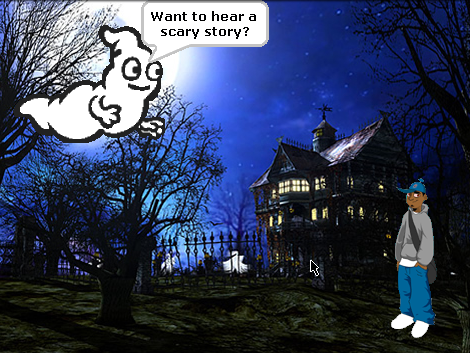
This is how to make an animated story. You might also like to create an animation set to a poem. Start Scratch. |
| Delete the cat sprite. | |
| Create a stage background for your story. Import one from the web or draw one or use one of the existing stage background already in Scratch. | |
| Choose new sprite from file or create your own. |

|
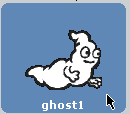
Click on to ‘Costumes’, then locate an appropriate sprite (or draw one yourself)
Rename your sprite - give it an appropriate name! Position the sprite on the stage, and resize it if you need to. |
|
Choose some music for your story (if appropriate).
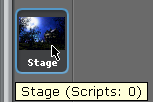
First, click on the ‘stage’… |
   |
…now click ‘sounds’
Click ‘import’ …then select an appropriate sound. (or locate your own sound…) |
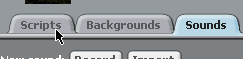
| .. now click in "Script". |
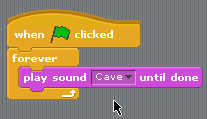
| add the block. |
 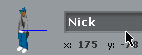
|
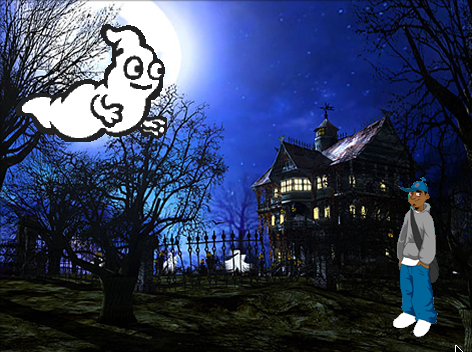
Import another sprite.
I have imported ‘boy2’ from the ‘people’ folder. Make sure you rename each sprite to something meaningful! |
| The characters are now going to talk to each other. | |
 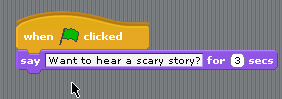
|
Click on to the sprite you want to make talk.
Add code blocks as shown… Change the ‘secs’ (seconds) time as appropriate. |
 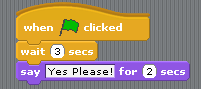
|
Now click on to the character who will respond.
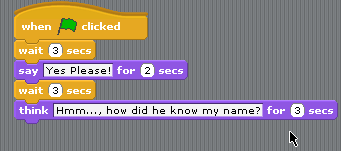
Add the blocks as shown. Now we don’t want the character to respond straightaway, so make sure you include a ‘wait’ block too. |
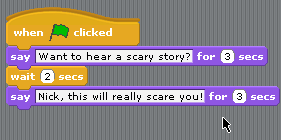
| You should then be able to click back on to the ghost and add more blocks like this… |
|
Clicking back on to Nick…
You can also add the ‘think’ blocks too… check it out! |
Now experiment with different backgrounds and sprites.
It will help if you write out each line of your story first!